Getting Started Team HUB
All Hub Settings
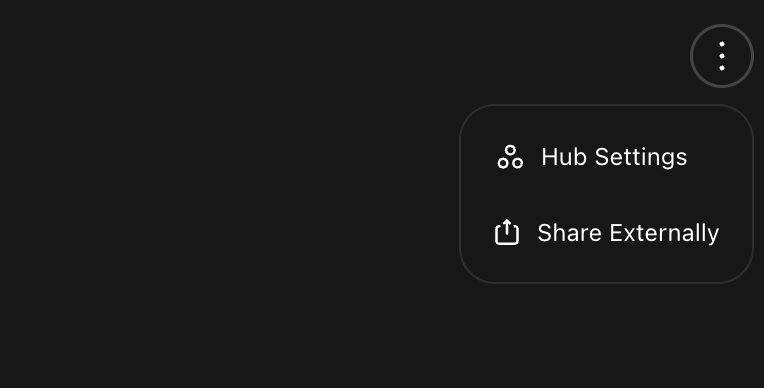
Access all your Hub Settings in the top right hand corner of your Hub screen by clicing the ‘three dots’ icon.
Invite your Members
Within Hub Settings, in the top right hand corner you can invite members via email or by copying and sharing the access code. We recommend sending the app download link and code to your members. Your members apply the code when signing up OR in settings if they are already a user. Instantly they will have access to the Hub.
(Download link here)
Add Content to Hub
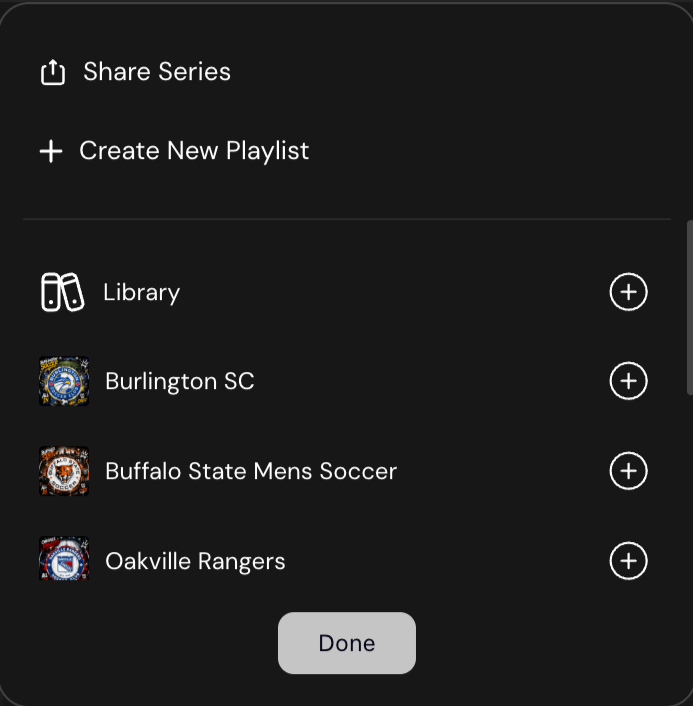
To add specific content to your Hub Library click the ellipsis (three dots) icon on Web or the add to library (+) icon on mobile to add it to your Hub library. Once selected click “done.” Members will receive a push-notification of the content added.
Add Mentors to Your Hub
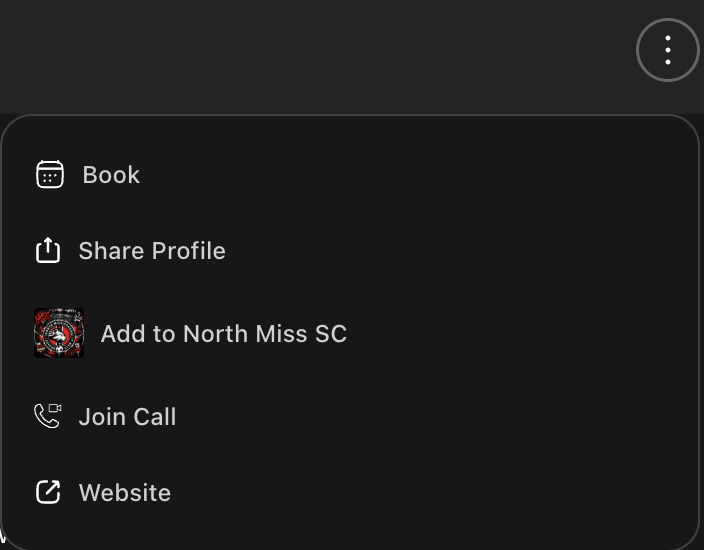
To add Mentors to your Hub as resources for your members navigate to a Mentor’s profile on Web or Mobile. Click the ellipsis(three dots) or (+) icon and select your Hub. Click done and this professional will now be listed under “Mentors” in your Hub.
Share to Your Hub Feed
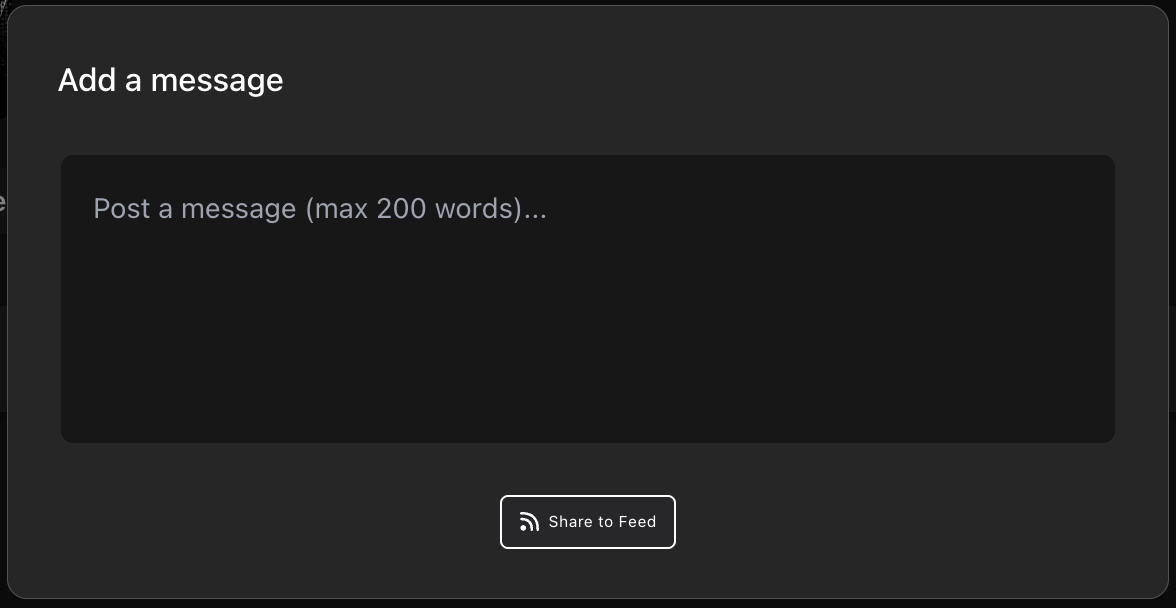
Add a message to your Hub Feed.
Navigate to the Feed on Web or Mobile. Click “Post to the Feed.” A modal will pop up allowing you to type and push a message to all of your member. They will receive a push-notification about the new message.
Add content to your Hub Feed
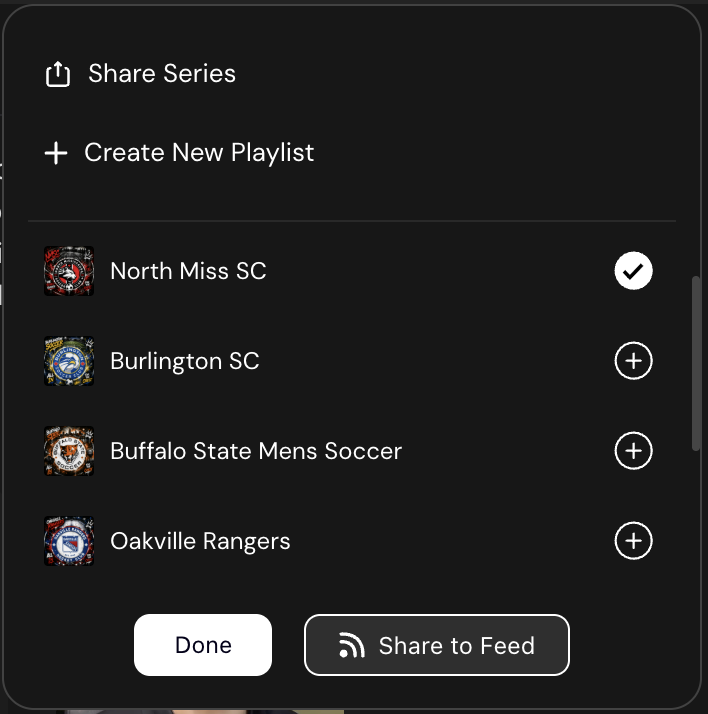
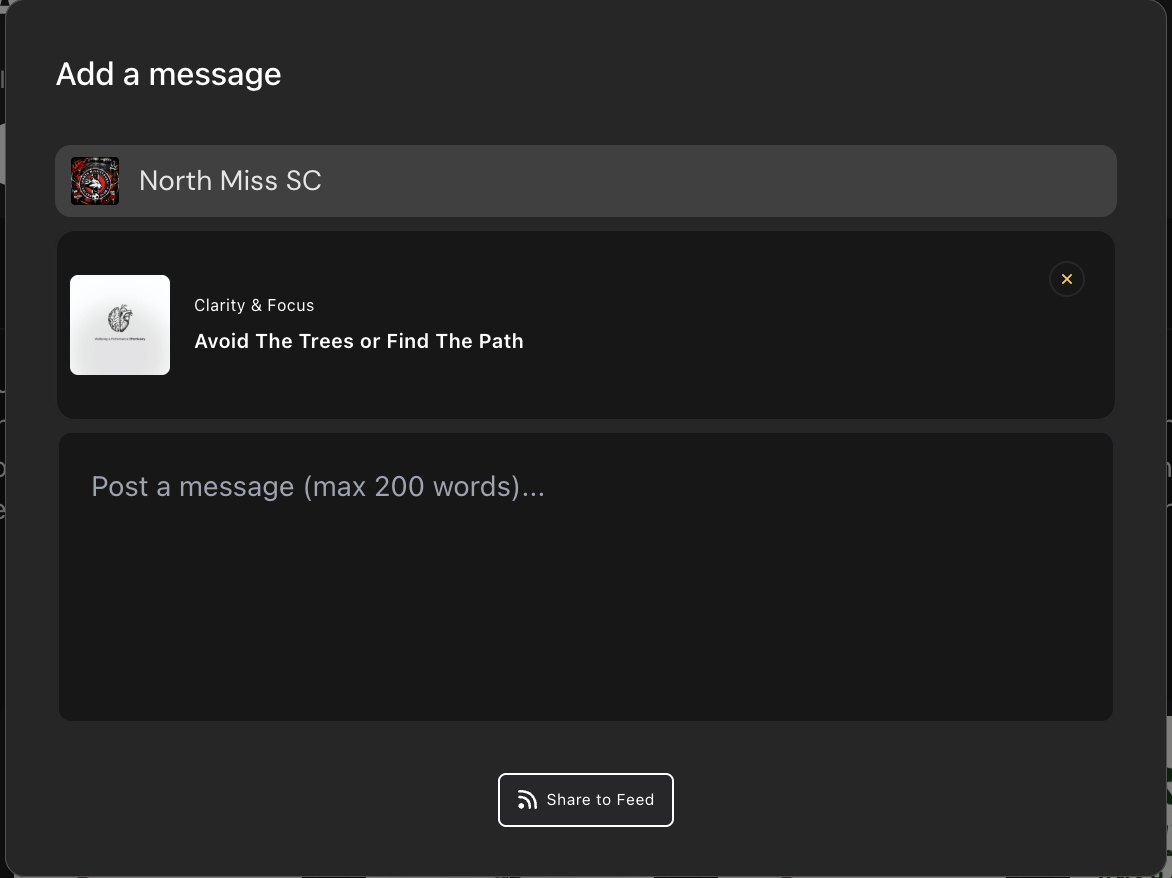
To share content with a message in your feed navigate to the content you would like to share on web or mobile. Click the ellipsis (three dots) or (+) icon. Select your hub. An option will appear to “Share to Feed.” Click this option and a new modal will pop-up to add a message. Click “Share to Feed.” Members will receive a push notification of this message in their feed.